Aiarty Image Enhancer: Restore Old Photos and Recover Blurry Faces with AI (49% Lifetime License)
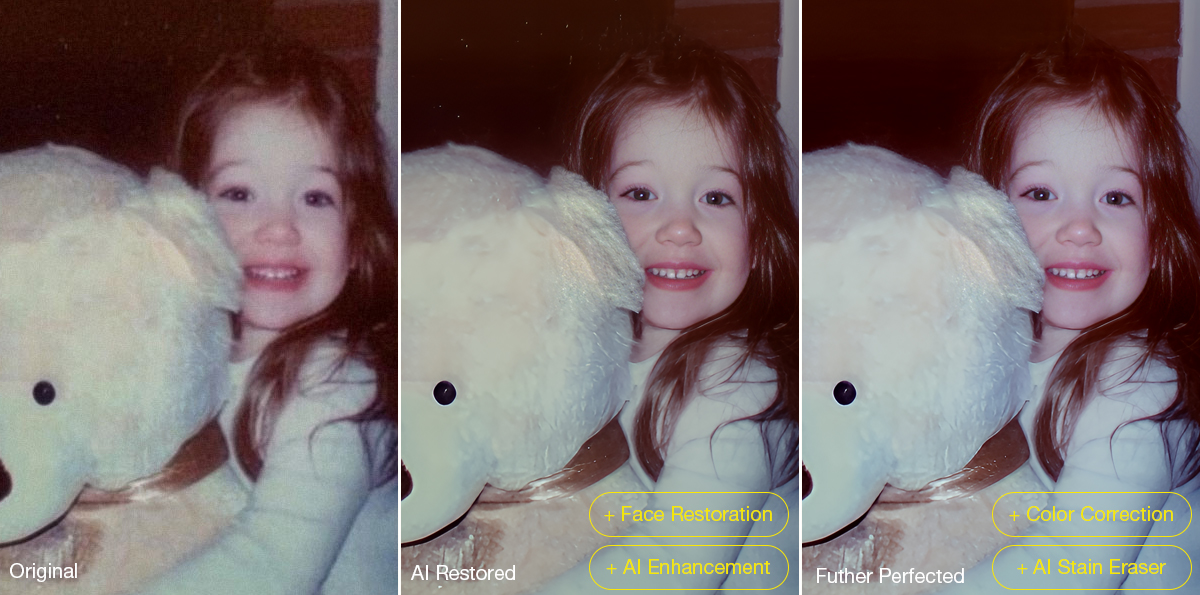
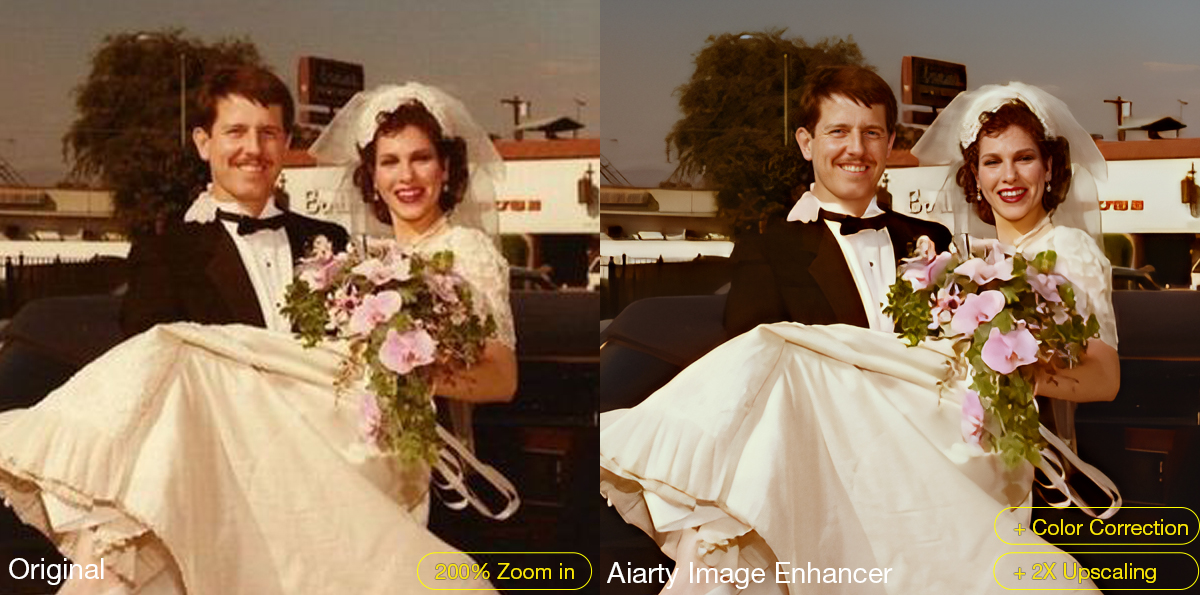
Restoring old photos is rarely as simple as increasing sharpness or removing visible damage. Many photographers and families are now digitizing decades-old prints, film negatives, and family albums to preserve them before physical deterioration becomes irreversible. However, scanned family photos and aging film prints often suffer from multiple issues simultaneously, including faded colors, scratches, dust, low-resolution scans, compression artifacts, and facial detail loss accumulated through years of storage, rescanning, and digital compression.
For photographers and archive enthusiasts, the challenge is restoring clarity without destroying the original texture and character of the image. Film grain is often mistaken for digital noise, facial details become overprocessed, and low-quality scans leave limited data for accurate restoration or upscaling.
Traditional workflows still rely heavily on manual Photoshop adjustments such as denoising, retouching, sharpening, scratch removal, and color correction, especially when processing larger photo archives or film scan collections.
AI-assisted restoration tools are increasingly being used to simplify repetitive cleanup tasks within a broader editing workflow. Designed around a restoration-oriented approach rather than one-click filters, Aiarty Image Enhancer combines denoising, deblurring, face recovery, scratch cleanup, upscaling, and color correction into a single workflow pipeline while maintaining more natural-looking results.
To celebrate its anniversary, the software is currently available at 49% OFF lifetime pricing, with the coupon code ANNIVERSARY providing an extra $5 off single products and $10 off bundles. The special offer runs through June 8.
The lifetime plan includes:
- Use on up to 3 Windows or Mac computers
- Unlimited access to all features
- Free lifetime upgrades and priority technical support
- 30-day money-back guarantee
How Aiarty Image Enhancer Fits Into Modern Photo Restoration Workflows
Rather than functioning as a one-click AI filter, Aiarty Image Enhancer is designed around a workflow-oriented approach for restoring old photos, film scans, and archived images while maintaining natural-looking detail.
A video demonstration showing real restoration results can be viewed below:
Its AI denoise and deblur tools help recover clarity from noisy or slightly soft scans without aggressively removing texture. A built-in Strength slider allows more controlled adjustments, which is particularly useful when working with film grain or older portraits where overprocessing can quickly create artificial-looking results.
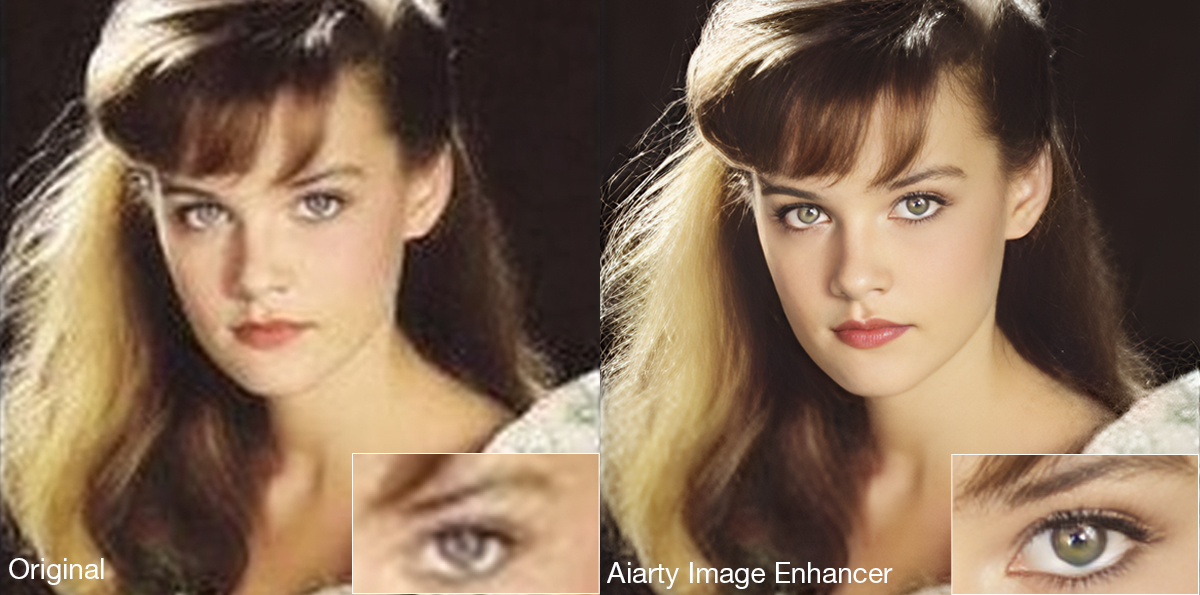
The latest Face Restoration improvements focus on rebuilding blurred facial areas while preserving realistic skin texture and facial structure. For damaged prints, the integrated AI Eraser can remove dust spots, scratches, stains, fold marks, and other small distractions commonly found in archived photographs.
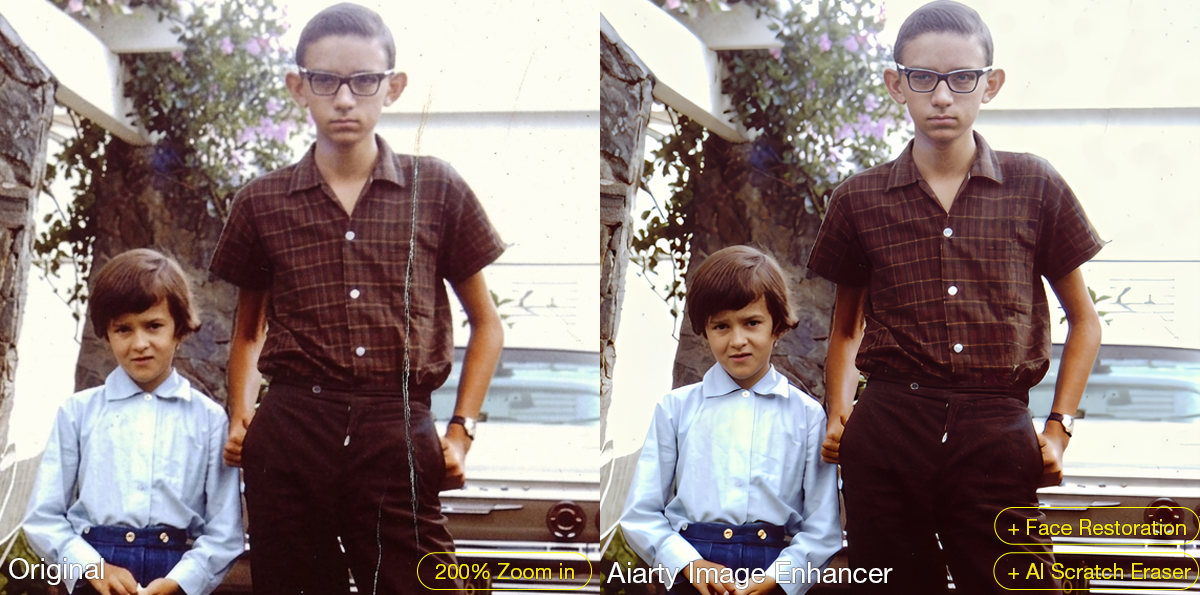
The software also supports AI upscaling for printing, digital archiving, and recovering low-resolution scans. Upgraded color controls help correct faded tones and yellow aging, while TIFF/DNG export support improves compatibility with Lightroom, Photoshop, and non-destructive editing workflows. Batch processing can further simplify repetitive cleanup work across multiple images or film scans.
A Practical Workflow for Restoring Old Photos
Step 1: Scan the Original Photo Properly
The quality of the restoration process still depends heavily on the original scan. For best results, scan photos at least 300dpi or higher, use TIFF when possible, avoid repeated JPEG compression, and clean the scanner surface before digitizing older prints.
Step 2: Reduce Noise and Upscale the Photo
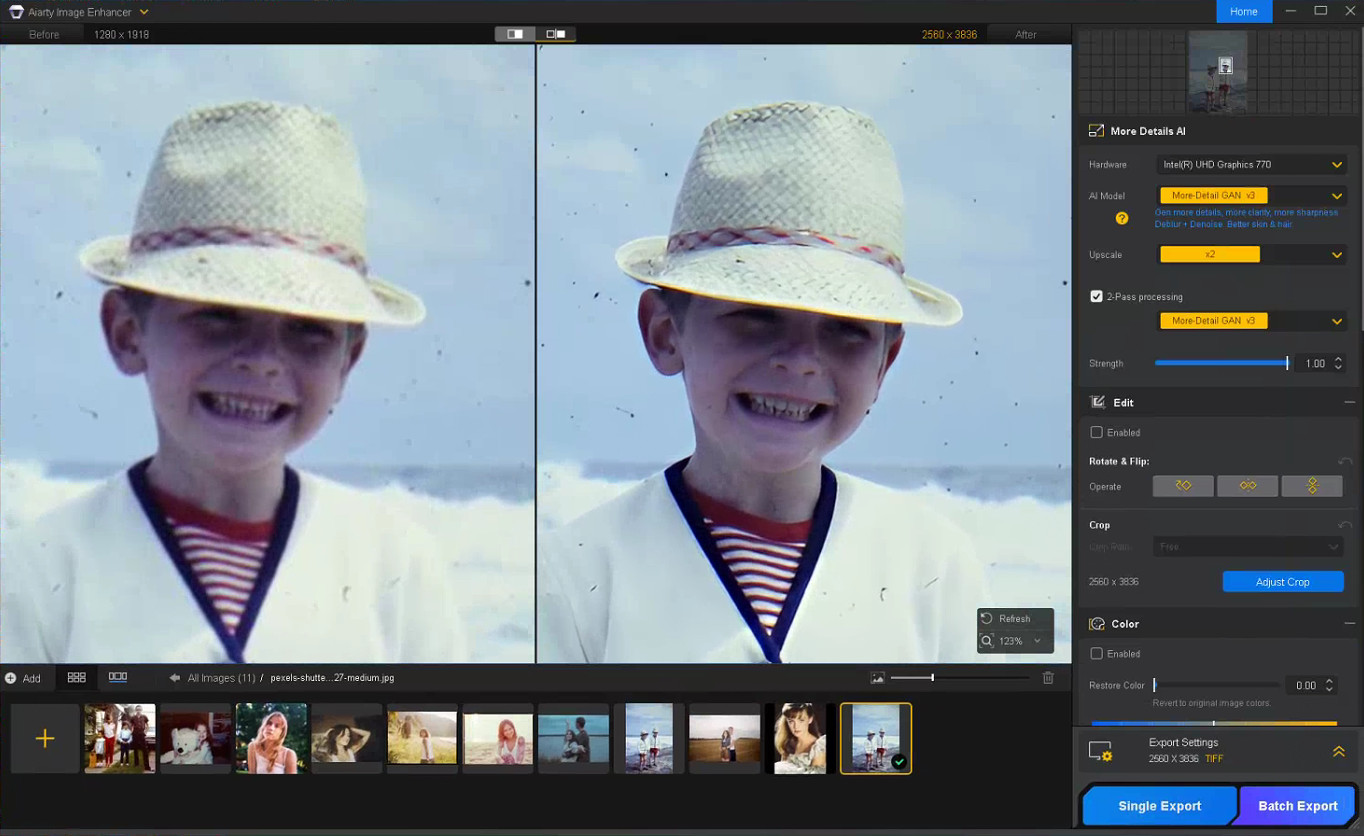
The first stage of restoring old photos usually focuses on improving image clarity while preserving the original texture of the photo. In Aiarty Image Enhancer, denoising, detail enhancement, and AI upscaling are processed together within the same AI pipeline.
Choose a suitable AI model and upscale factor depending on your old/damaged photo restoration goal. Using x1 applies denoising and enhancement only, while higher upscale settings can help AI upscale photos from low-resolution scans and prepare restored photos for printing or digital archiving without heavily over-smoothing fine details.
Step 3: Restore Facial Details Carefully
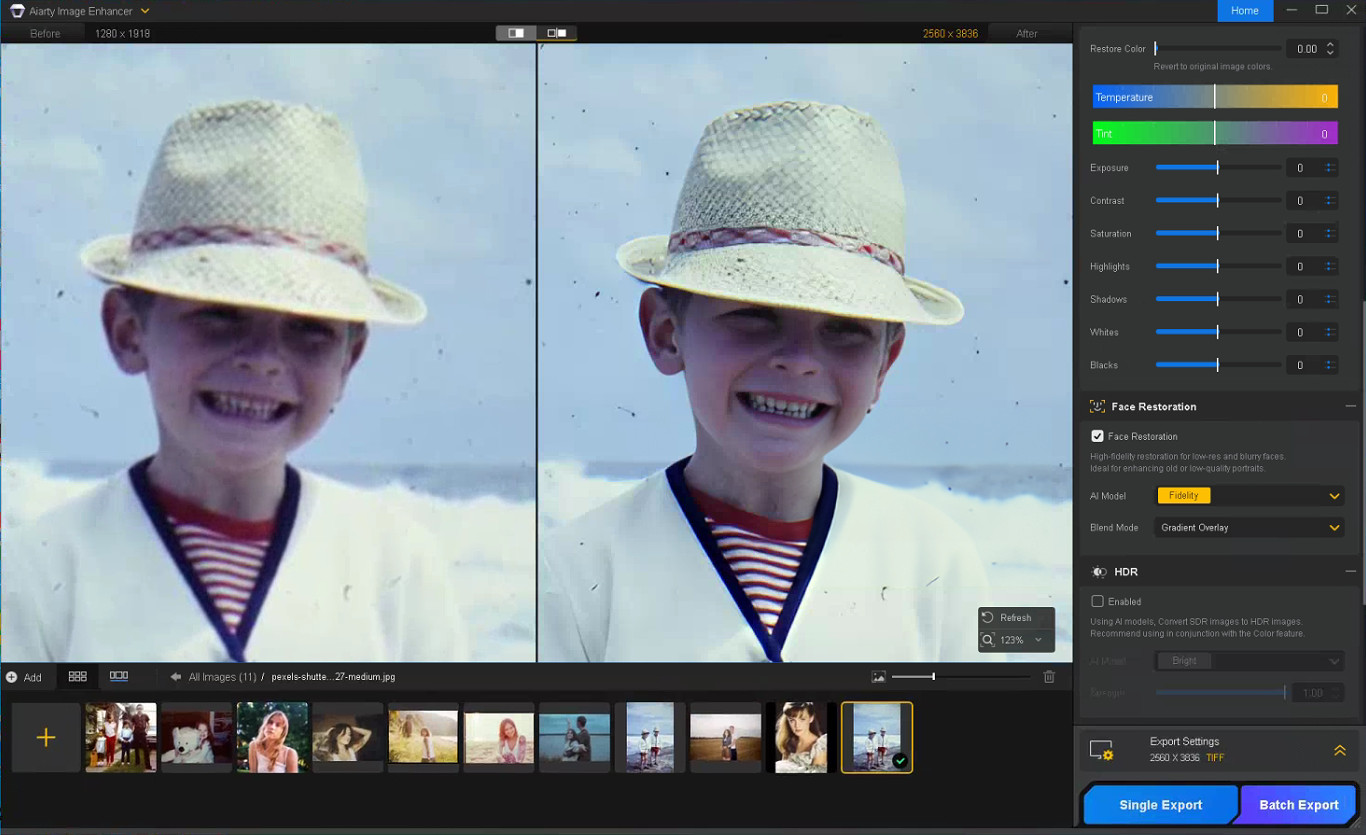
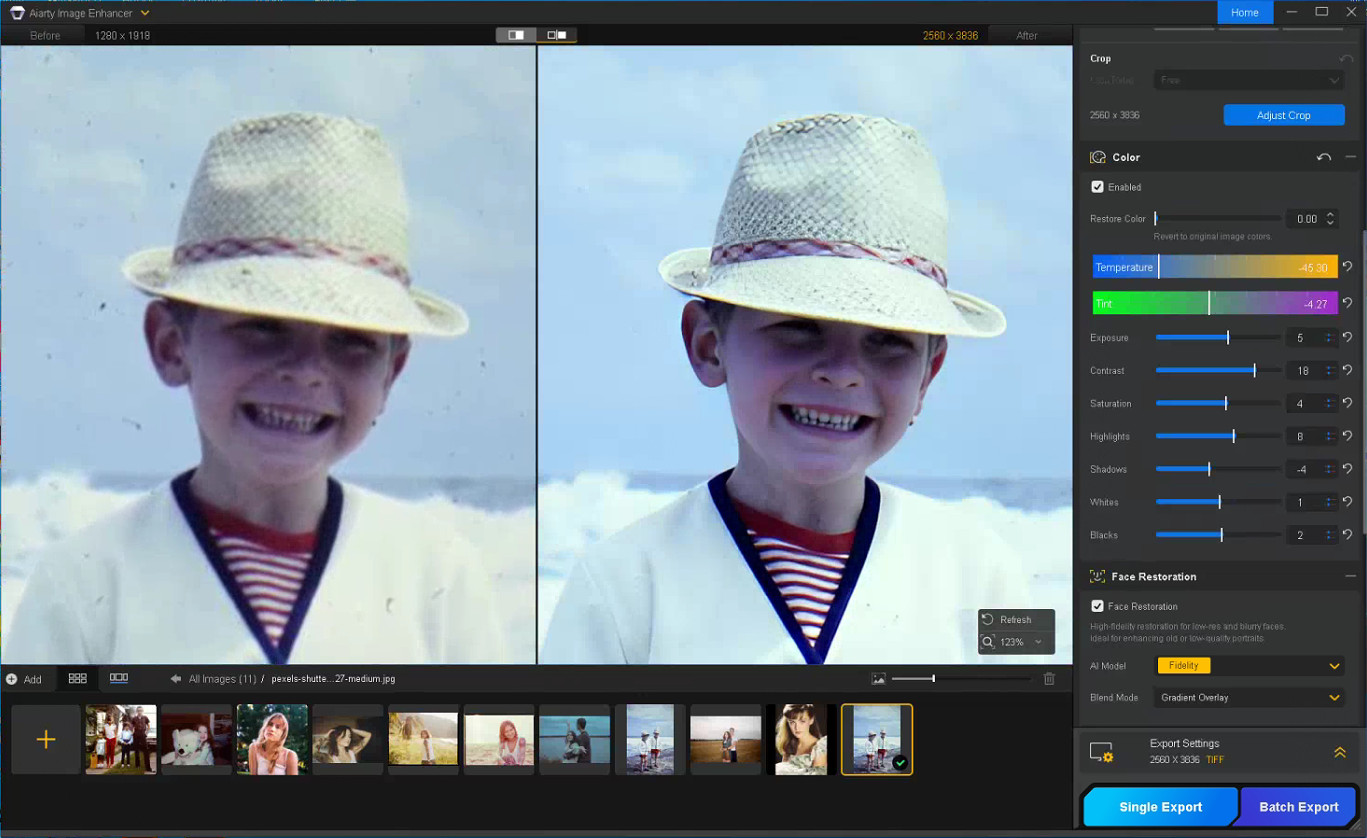
Enable Face Restoration and choose the Fidelity mode to better preserve the original facial structure and maintain more realistic-looking results. Rather than aggressively sharpening every facial feature, Aiarty’s Face Restoration focuses on recovering eye clarity, hair detail, facial edges, and natural skin texture while avoiding an over-smoothed or artificial appearance.
Step 4: Remove Scratches, Dust, and Small Damage
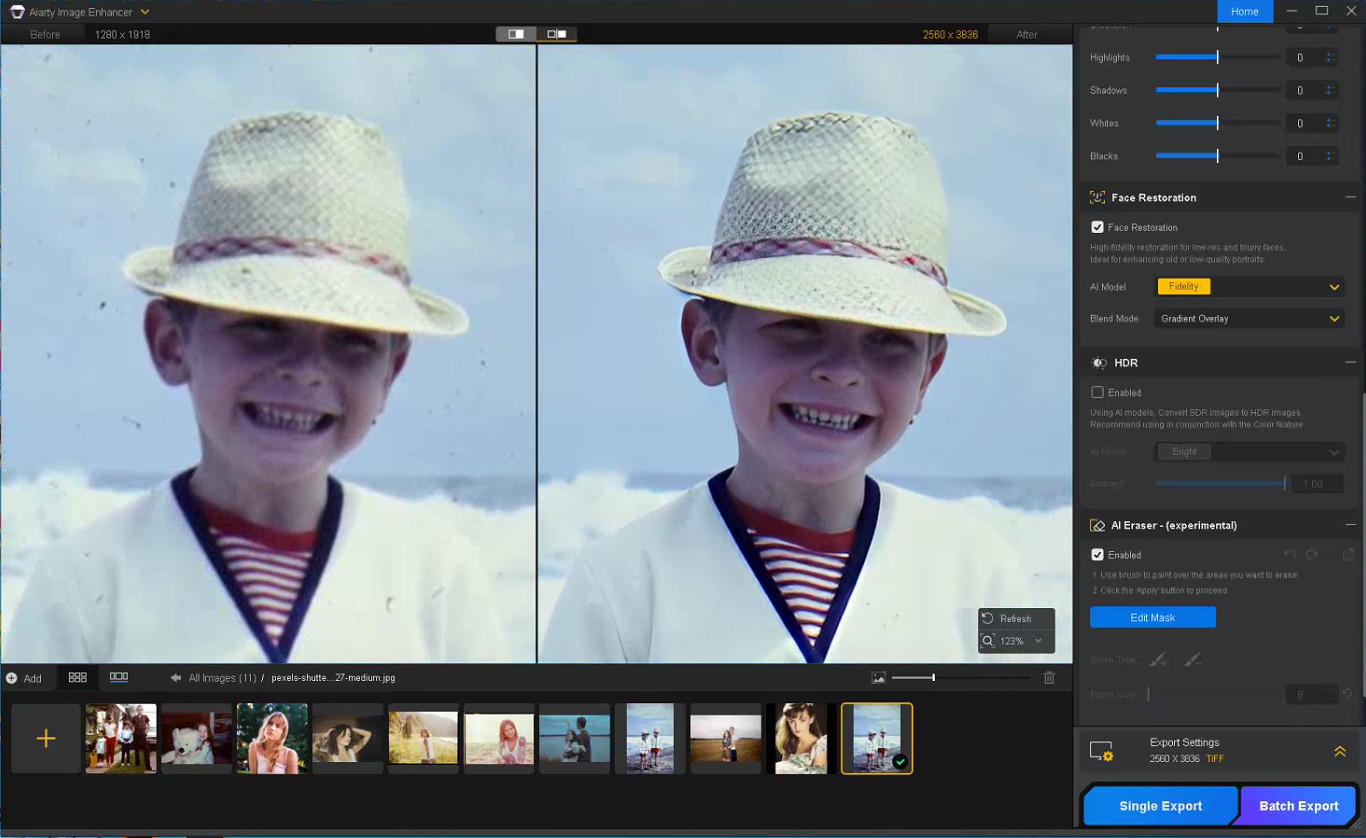
Enable the AI Eraser and mask scratches, stains, fold marks, or other distracting elements. Working in smaller sections with a properly adjusted brush size generally produces more natural-looking results than masking large areas at once.
Step 5: Correct Faded Colors and Improve Contrast
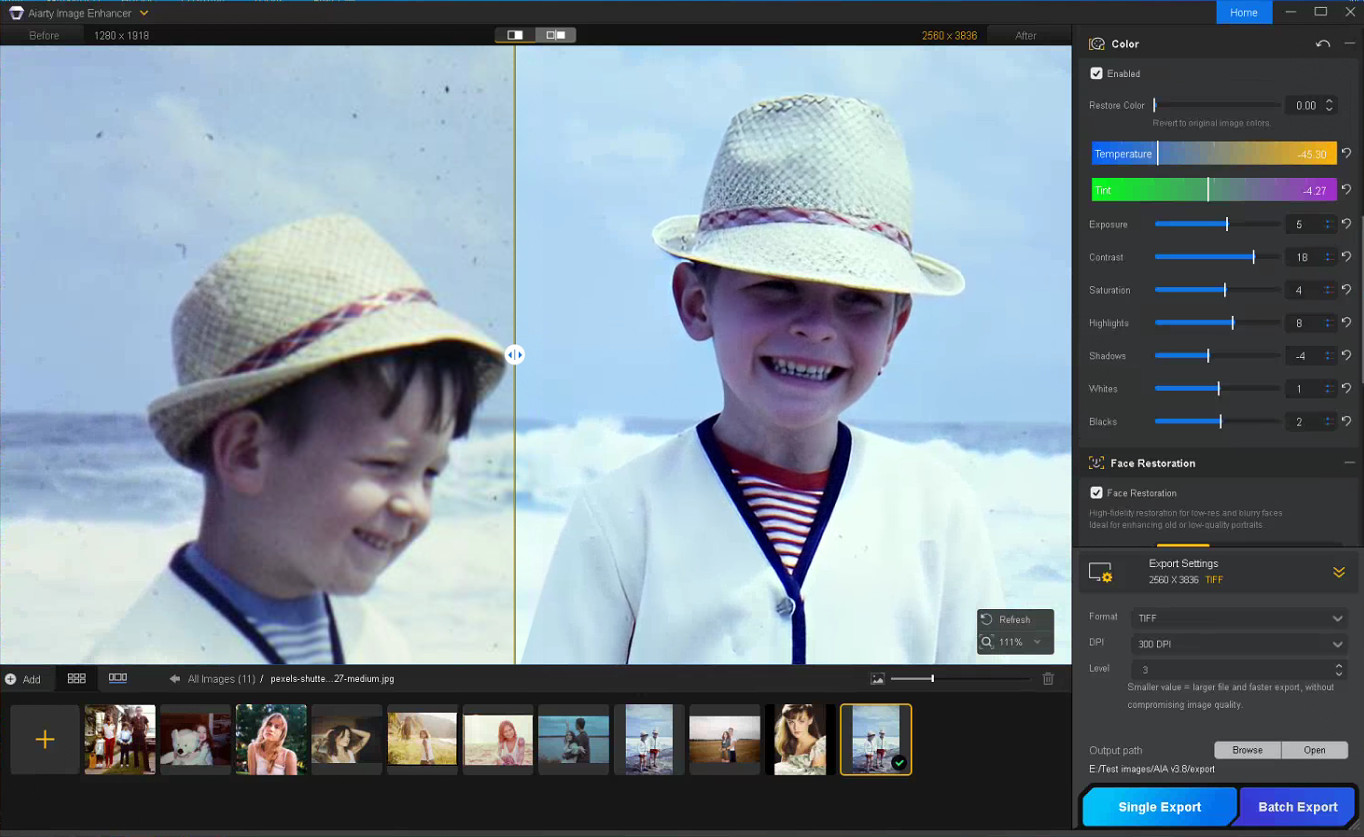
With the Color option enabled, you can fine-tune temperature, tint, contrast, exposure, shadows, and other parameters to correct yellow tint, faded contrast, washed-out shadows, and uneven color fading commonly found in older photos, helping restore depth and readability without making the image look overly processed.
Step 6: Export the Restored Photo
Once restoration is complete, choose the output format, DPI, and quality settings before exporting the final image. TIFF and DNG formats are recommended for preserving image quality and maintaining compatibility with Lightroom and Photoshop workflows.
Notes for Getting Better Restoration Results
Old photo restoration results can vary depending on the condition of the original image, so small workflow adjustments often produce better outcomes.
Trying Different AI Models
Each AI model in Aiarty Image Enhancer is optimized for different enhancement scenarios.
- More-Detail GAN v3: Enhances detail and sharpness while reducing blur and noise
- AIGCsmooth v3: Optimized for AI-generated images and smoother surfaces
- Real-Photo v3: Designed for high-quality photos with more natural detail recovery
Experimenting with different AI models can help identify which one produces the most natural-looking old photo restoration for a specific image.
Adjusting the Strength Setting
If the restored image looks slightly waxy or overprocessed, lowering the Strength value can help preserve more natural texture and finer details.
Restoring Before Upscaling
For printing or digital archiving, it is generally recommended to complete denoising and face correction before applying upscaling, as cleaner base images usually produce more stable results.
In some cases, sequential upscaling (such as 2x + 2x) may also preserve detail better than applying a direct 4x upscale in a single pass.
Using Face Restoration Selectively
Face Restoration works best on photos where facial details are still partially visible but have become soft or faded over time. Fidelity mode keeps results closer to the original image, while Rebuild focuses more on reconstructing missing facial details.
Final Thoughts
The photo restoration workflow used in Aiarty Image Enhancer helps streamline the process while preserving more natural-looking detail compared to isolated manual adjustments. By combining cleanup and enhancement into a structured sequence, it reduces repetitive Photoshop work and improves consistency across different image types.
Beyond old photo recovery, the same workflow can also improve compressed social media uploads, AI-generated images, low-quality web photos, and images prepared for posters or large-format printing.
With the anniversary promotion, users can get the Aiarty Image Enhancer Lifetime License for only $74 (up to 52% OFF) with the code “ANNIVERSARY”, including lifetime access, lifetime free updates, and a 30-day money-back guarantee with no hidden fees.